 MIDI Genie
How to Make a Beat for Your Vocals with AI (Loops That Fit)
Short answer
Open Loops in MIDI Genie, add your vocal (upload an acapella or record it in the browser), confirm its tempo and key, choose Matched, describe the beat you want and press Make loop. You get a beat loop in your vocal's key and tempo, made to fit its style and mood. Play it with your vocal, line it up, and drag it into any DAW.
You have a hook, a verse or a voice note, and no beat to put it on. Searching for a type beat that happens to sit in your key and tempo can take hours. This guide shows how to make a beat for your vocals with AI instead: loops built around your vocal, that you hear with it before you download anything.
What you need
- A vocal on its own: an acapella, a sung hook, a rap verse or a hummed idea. A WAV or MP3 up to 10 MB, or record it right in the browser.
- A free MIDI Genie account. New accounts get 20 free credits, no card needed.
- Any DAW to finish the beat in: FL Studio, Ableton Live, Logic Pro, Cubase, Studio One, Reaper or any other. The loops are WAV files.
Best results: a dry vocal with no beat behind it. If your vocal is part of a full song, use the acapella version.
How to make a beat for your vocals, step by step
Step 1: Open Loops and add your vocal
Log in at app.midigenie.com and open Loops. At the top you'll see Add a beat or vocal. Press it to upload a file, or press Record to sing or hum straight into your mic, for up to three minutes. Before anything is uploaded you confirm the audio is yours to use: your own vocal, or one you have permission for.
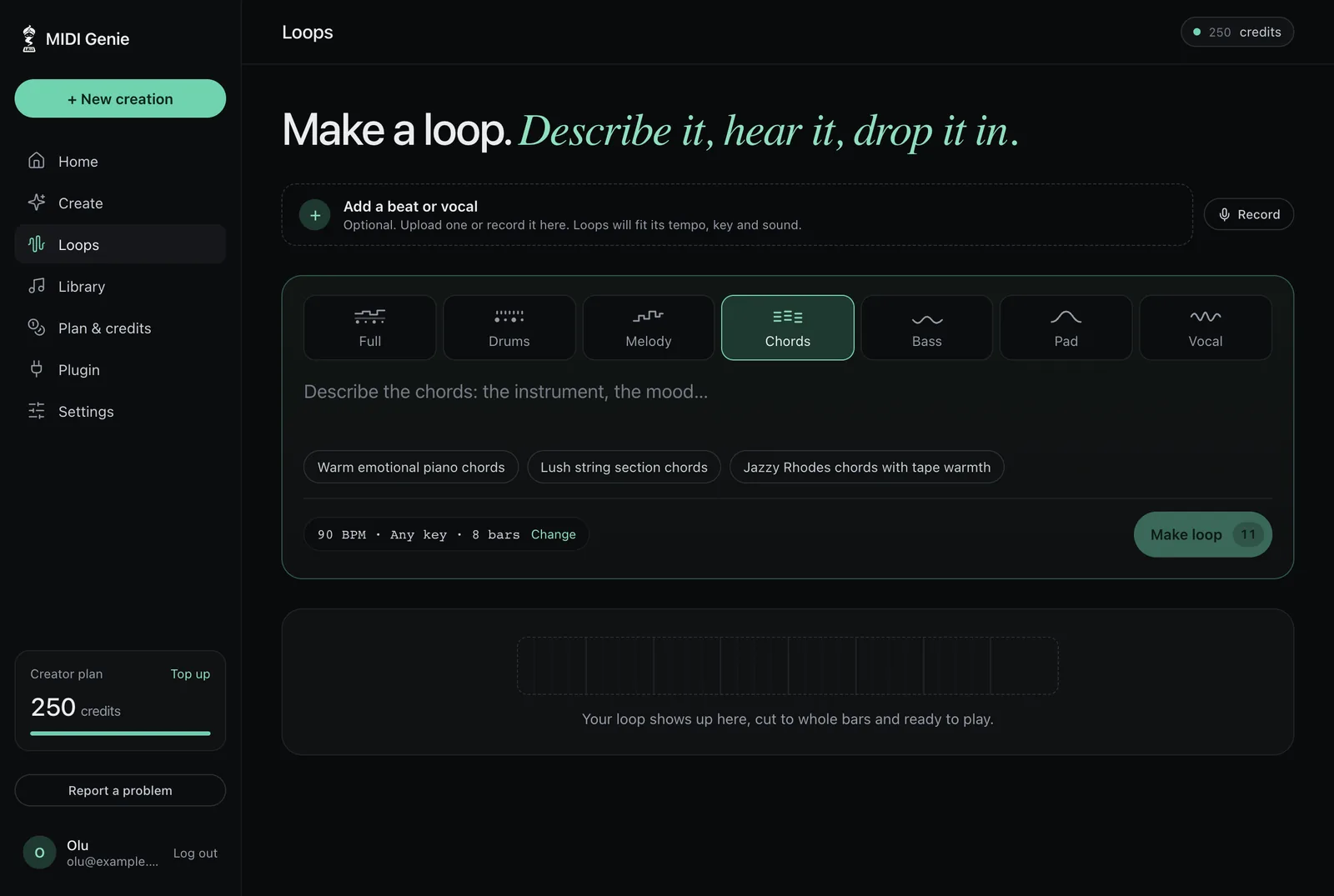
Recording works the same way as a file: you see the level as you sing, then listen back and choose Use it or Record again.
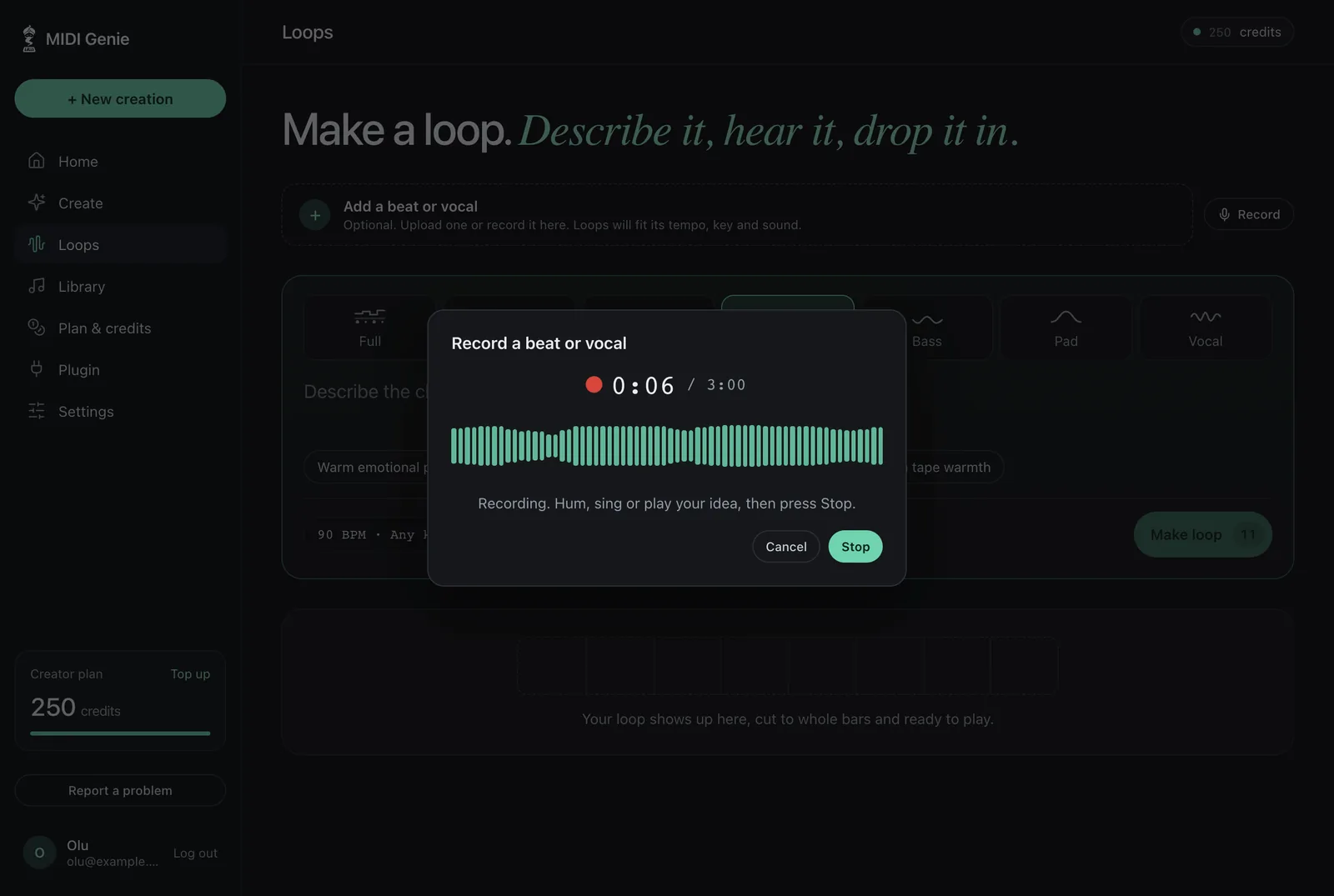
Step 2: Say it's a vocal, and hear it first
MIDI Genie asks what you added: A beat or A vocal. Choose A vocal. That tells it to build a full beat around your voice rather than add one part to an existing beat. Press play to check it's the right file before it uploads; if not, choose Choose another file.
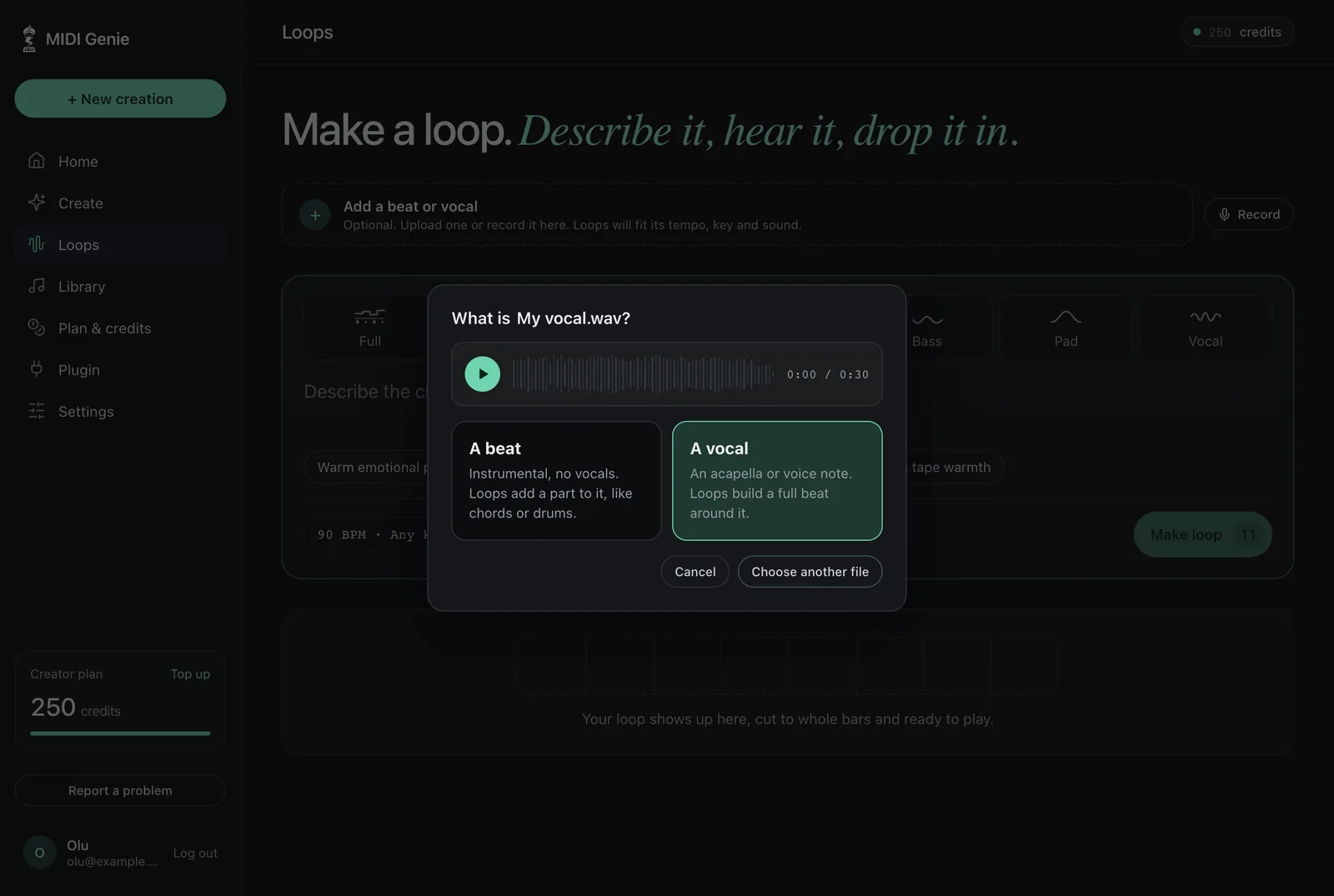
Step 3: Check the tempo and key of your vocal
Next comes Check the tempo and key. MIDI Genie listens to your vocal and suggests its key (three options, likeliest first) and its tempo. Press play with Hear the click and Hear the key on. The click should land on the beat of your singing, and the key's chord should blend in under your voice, not clash.
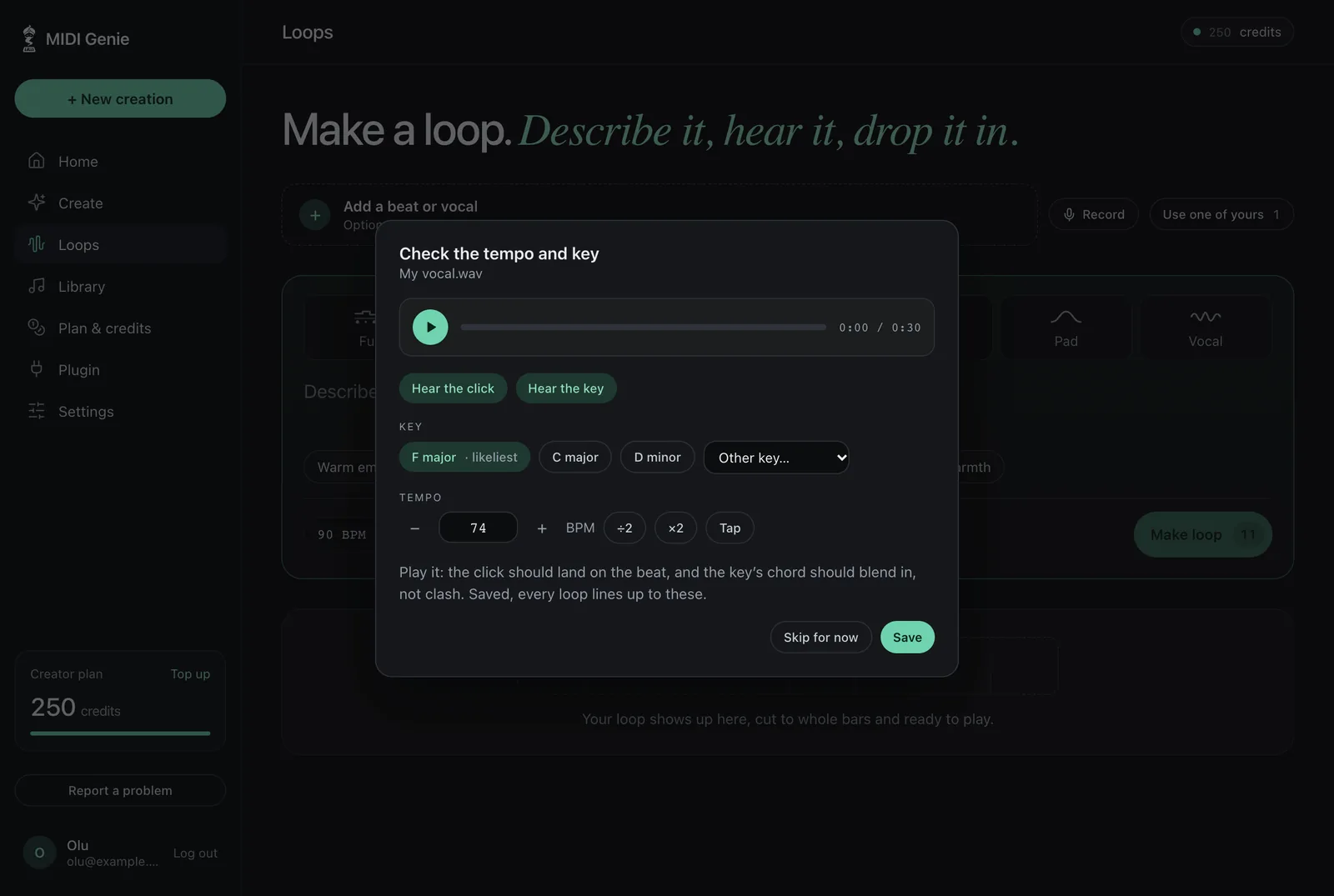
- Key sounds off? Try the other two suggestions, or pick any key from Other key.
- Click twice as fast, or half as fast, as your vocal feels? Press ÷2 or ×2.
- Know the tempo already? Type it, or press Tap along with your vocal.
- File name says a key and BPM (like
hook_Fmaj_74bpm.wav)? It's offered as an option to try too.
Press Save. Every loop you make for this vocal is made at this tempo and in this key, and lines up to it.
Step 4: Choose Matched and describe the beat
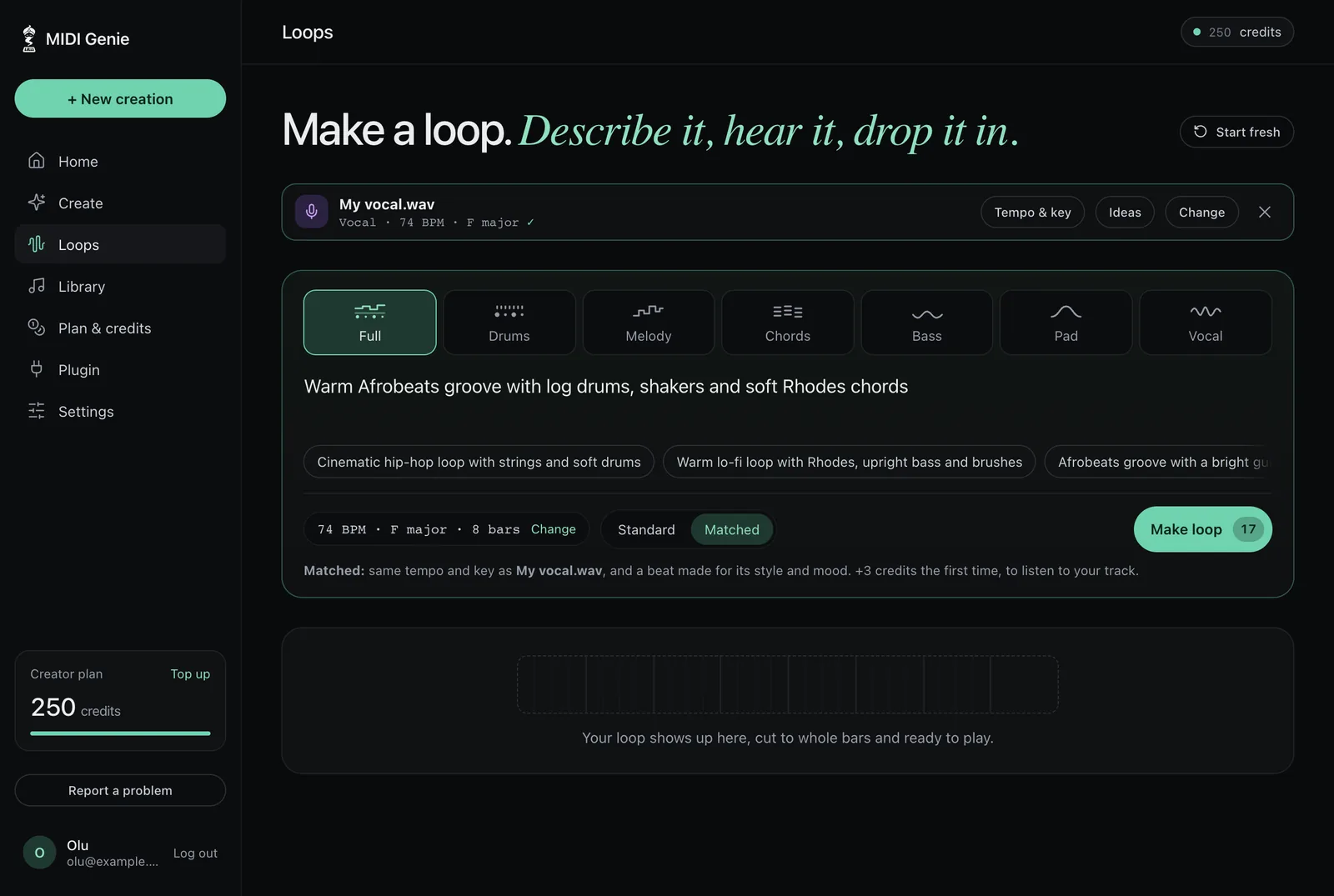
Your vocal now sits at the top with its tempo and key. Choose the kind of loop: Full for a whole beat, or one part (Drums, Melody, Chords, Bass, Pad or Vocal chants). For a beat around a vocal, start with Full.
Then choose between Standard and Matched:
| What you get | |
|---|---|
| Standard | The same tempo and key as your vocal. The sound comes from your description. |
| Matched | The same tempo and key, plus a beat made for your vocal's style and mood. It costs a few credits more the first time, while MIDI Genie listens to your vocal. |
Describe the beat in a sentence: the genre, the mood and the sounds you hear in your head. The price in credits shows on the Make loop button before you press it.
Descriptions that work well:
- Warm Afrobeats groove with log drums, shakers and soft Rhodes chords
- Gospel chords on a Hammond organ with a soft live drum groove
- Lo-fi beat with dusty drums, upright bass and a mellow electric piano
- Cinematic hip-hop with strings, deep drums and a slow piano motif
- Smooth R&B with a round bass, finger snaps and airy pads
Step 5: Make the loop and hear it with your vocal
Press Make loop. A few moments later the loop appears, cut to whole bars on the downbeat. Choose With your track and press Play together to hear the loop under your vocal, in step, before you download anything.
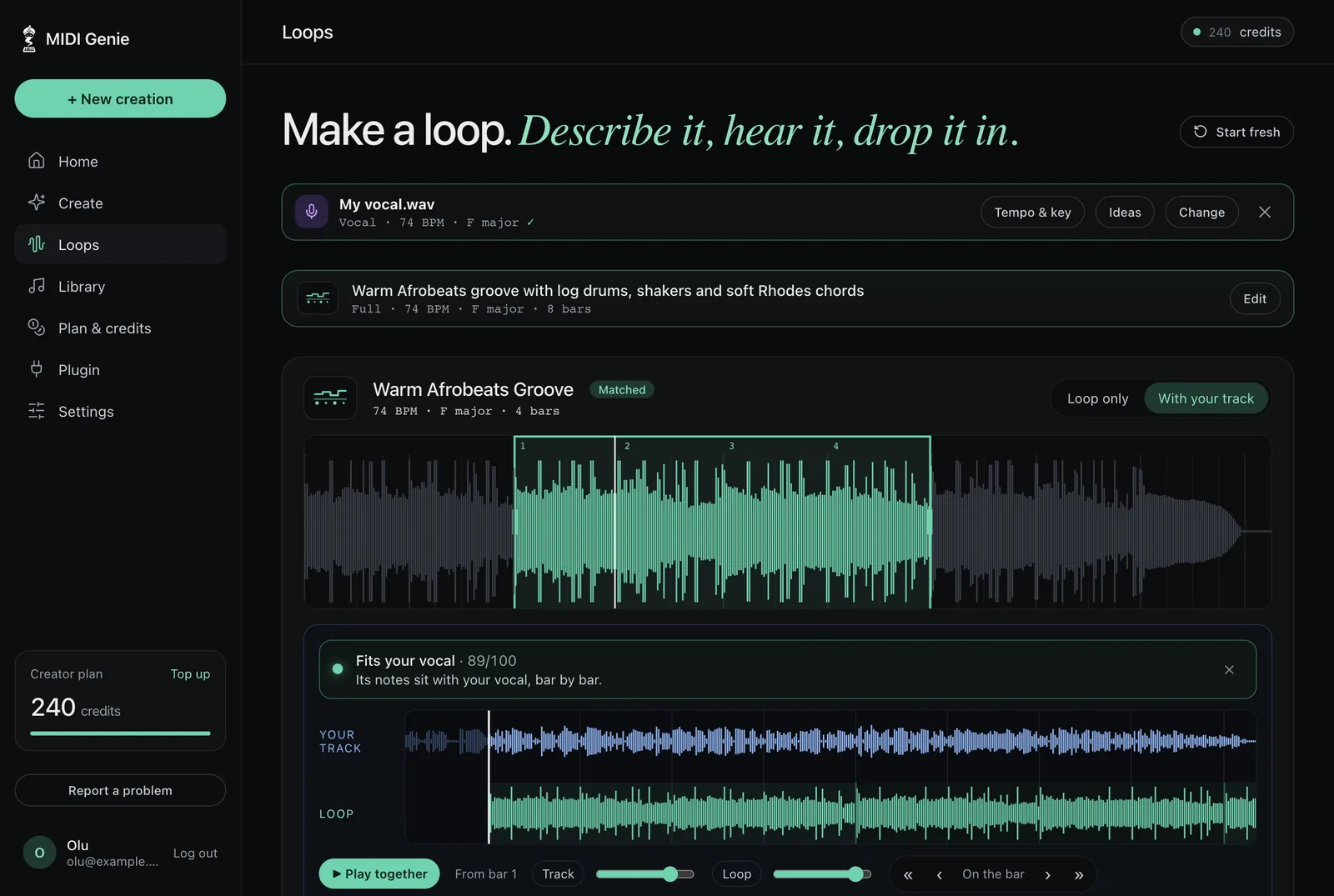
MIDI Genie also checks how well the loop fits your vocal, bar by bar, and tells you. If a loop doesn't sit right, press Make another, or adjust your description (a different instrument, mood or energy) and make a new one.
Step 6: Line it up, choose the bars and download
Everything you need to finish the loop is under the player:
- « ‹ › » nudge the loop a beat or a quarter beat earlier or later, if it should start off the bar.
- 2 bars, 4 bars, 8 bars set how much to keep. Drag across the waveform to pick exactly which bars.
- Key − / + moves the loop up or down a semitone without changing its speed.
- Hear a voice in it? Remake free: now and then a Matched loop picks up a voice from your vocal. Once per loop, a new take is free.
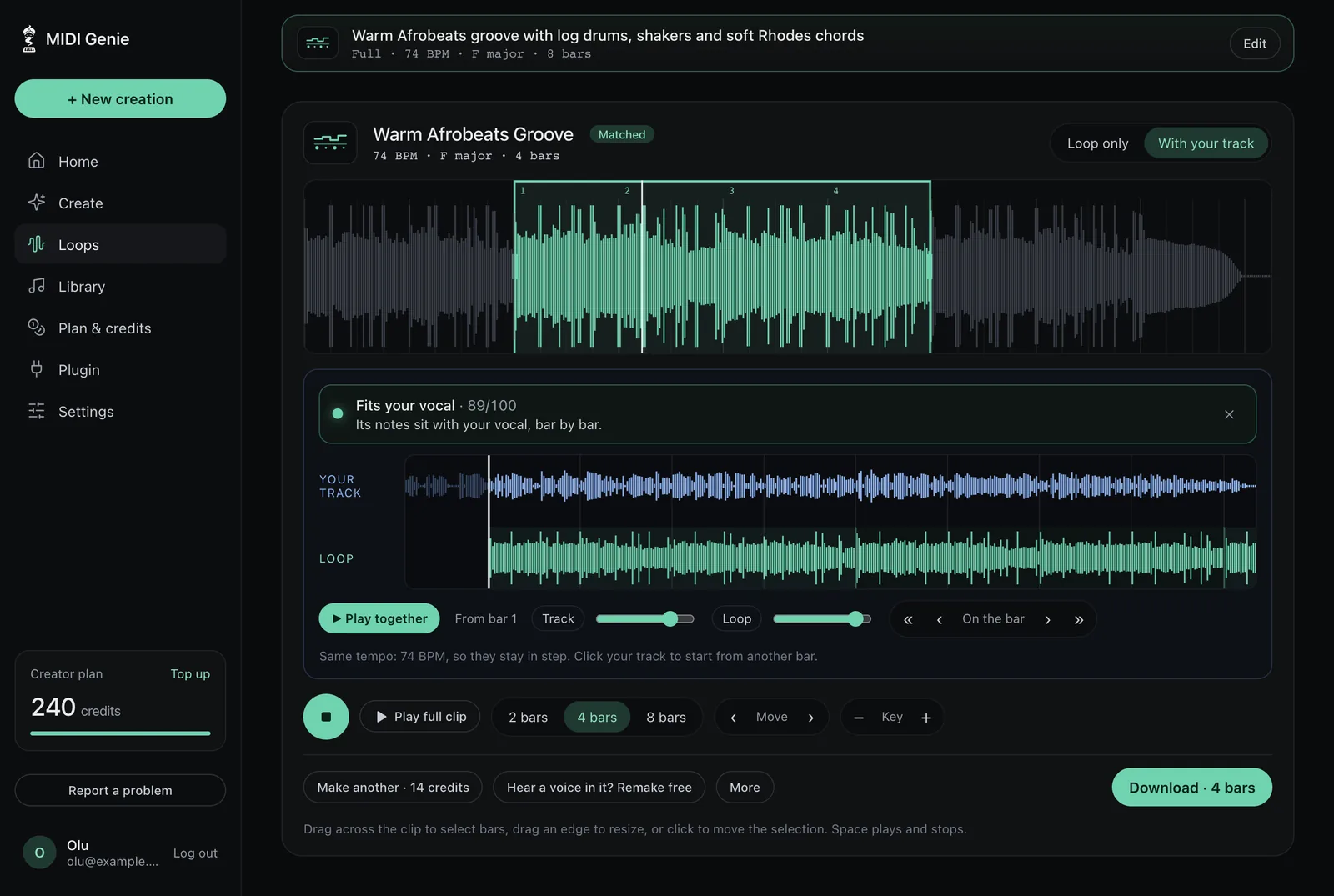
Press Download to save the loop as a WAV, cut exactly to the bars you chose.
Step 7: Drop the loop into your DAW
Set your project to your vocal's tempo, put your vocal on one track and the loop on another, both starting at bar 1. Because the loop was made at your vocal's tempo and cut on the downbeat, it lines up without stretching. Then build the rest of the beat around it: add more loops for a drop or a bridge, or make single parts (drums, bass, chords) for the same vocal and stack them.
Tips for better beats from your vocal
- Use a clean vocal. No beat, no backing track, little reverb. The clearer the voice, the better the tempo, key and fit.
- Check the tempo and key before you make loops. Thirty seconds with the click and the key chord saves credits later.
- Start with a Full loop, then add parts. When the groove is right, make a Bass or Chords loop for the same vocal to fill it out.
- Say the energy. Words like "laid-back", "driving" or "builds" change the loop more than extra instrument names.
- Make a few and keep the best. Each loop is different; your ear decides.
Troubleshooting
| Problem | What to do |
|---|---|
| The loop feels twice as fast or slow | Open Tempo & key on your vocal and press ÷2 or ×2, then make the loop again. |
| The loop clashes with the vocal | Check the key in Tempo & key with Hear the key on, and try the other suggestions. Or shift the loop with Key − / +. |
| The loop starts in the wrong place | Use « ‹ › » to nudge it until it sits with your vocal. |
| A voice from the vocal got into the loop | Press Hear a voice in it? Remake free. |
Frequently asked questions
Can I make a beat for my vocals for free?
Yes, to start. New MIDI Genie accounts get 20 free credits with no card, enough to make loops for your vocal and hear them with it. After that, plans and credit packs are on the pricing page.
Will the beat be in the same key and tempo as my vocal?
Yes. You confirm your vocal's tempo and key once, with a click and the key's chord to check by ear, and every loop is made at that tempo and in that key, cut to whole bars on the downbeat.
Can I hum an idea instead of uploading a vocal?
Yes. Press Record on the Loops page and hum, sing or rap into your mic for up to three minutes. Listen back, use it, and make loops for it the same way.
What is the difference between Standard and Matched loops?
Both are made at your vocal's tempo and key. Standard takes its sound from your description. Matched also listens to your vocal and makes a beat for its style and mood. It costs a few credits more the first time.
Can I use the loops in my releases?
Yes. You own what you make in MIDI Genie and can use it in your releases, commercially or not, with no credit needed. See the Terms for the details.
Which DAWs do the loops work in?
All of them. Loops download as WAV files cut to whole bars, ready for FL Studio, Ableton Live, Logic Pro, Cubase, Studio One, Reaper or any other DAW.
Is my vocal private?
Yes. Your uploads and loops stay private to your account, and you can delete them at any time.
Can I get MIDI instead of audio loops?
Yes. In Create, attach your vocal and MIDI Genie reads its melody as notes and writes drums, bass and chords around it as MIDI you can edit. See the guide to making a MIDI beat for your vocals.
Related tools
- Make a MIDI beat for your vocals: the same idea, as editable MIDI.
- Sing or Hum to MIDI: turn a hum or an acapella into MIDI, free, in your browser.
- Key & BPM finder: find the key and tempo of any track, free.
- The loop generator: everything Loops can do.
Keep reading
Published 21 October 2026.