 MIDI Genie
 Is Now on Windows: the AI MIDI Generator, Inside Your DAW
Short answer
MIDI Genie, the AI MIDI generator, is now on Windows. It runs on Windows 10 and 11 (64-bit) as a VST3 instrument and a standalone app. Download the Windows installer, run it, rescan plugins in your DAW and load MIDI Genie as an instrument. Log in with your account (or enter a licence key), describe the beat you want, and drag the MIDI tracks straight into FL Studio, Ableton Live, Cubase, Studio One, Reaper or any DAW that loads VST3.
Until now, the MIDI Genie plugin only ran on Mac. If you make beats on a Windows PC, you had to make them in the web app and download each take. Not any more: MIDI Genie now runs inside your DAW on Windows. Describe a beat, hear it, change it in plain words and drag the parts onto your timeline without leaving your project. Here it is in FL Studio, and below, how to set it up step by step.
What you need
- A Windows PC running 64-bit Windows 10 or 11.
- A DAW that loads VST3 instruments, in its 64-bit version: FL Studio, Ableton Live, Cubase, Studio One, Reaper, Bitwig and others.
- Any MIDI Genie plan or credit pack, or a one-time licence. New accounts get 20 free credits to try MIDI Genie in the web app first.
On a Mac? It's the same plugin, as AU and VST3. The install guide covers both.
How to install MIDI Genie on Windows and make your first beat
Step 1: Download the Windows installer
Log in at app.midigenie.com, open Plugin and press Download for Windows. If you bought a licence, the installer is also in your receipt email and customer portal.
Step 2: Run the installer
Open the file you downloaded. Windows may say "Windows protected your PC" the first time, because the installer is new: press More info, then Run anyway, and Yes when Windows asks to allow changes. Then press Install.
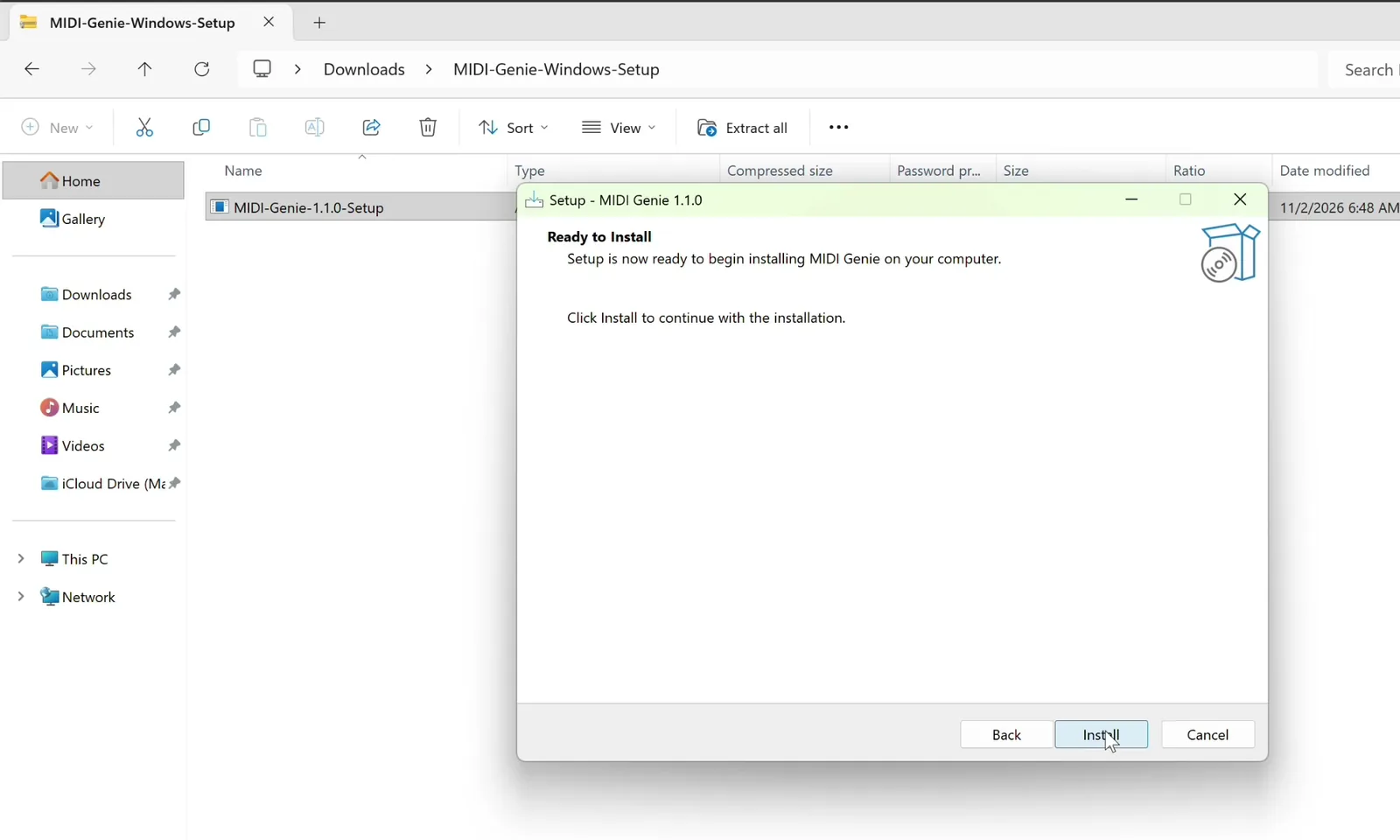
It puts the VST3 plugin in C:\Program Files\Common Files\VST3, the standard folder every DAW checks, and the MIDI Genie app in your Start menu.
Step 3: Rescan plugins in your DAW
Restart your DAW, or rescan plugins, so it finds MIDI Genie:
- FL Studio: Options → Manage plugins → Find more plugins.
- Ableton Live: Options → Preferences → Plug-ins, turn on Use VST3 Plug-in System Folders, then press Rescan.
- Cubase: Studio → VST Plug-in Manager, then rescan.
- Reaper: Options → Preferences → Plug-ins → VST, then Re-scan.
- Studio One: restart it; it scans the VST3 folder when it opens.
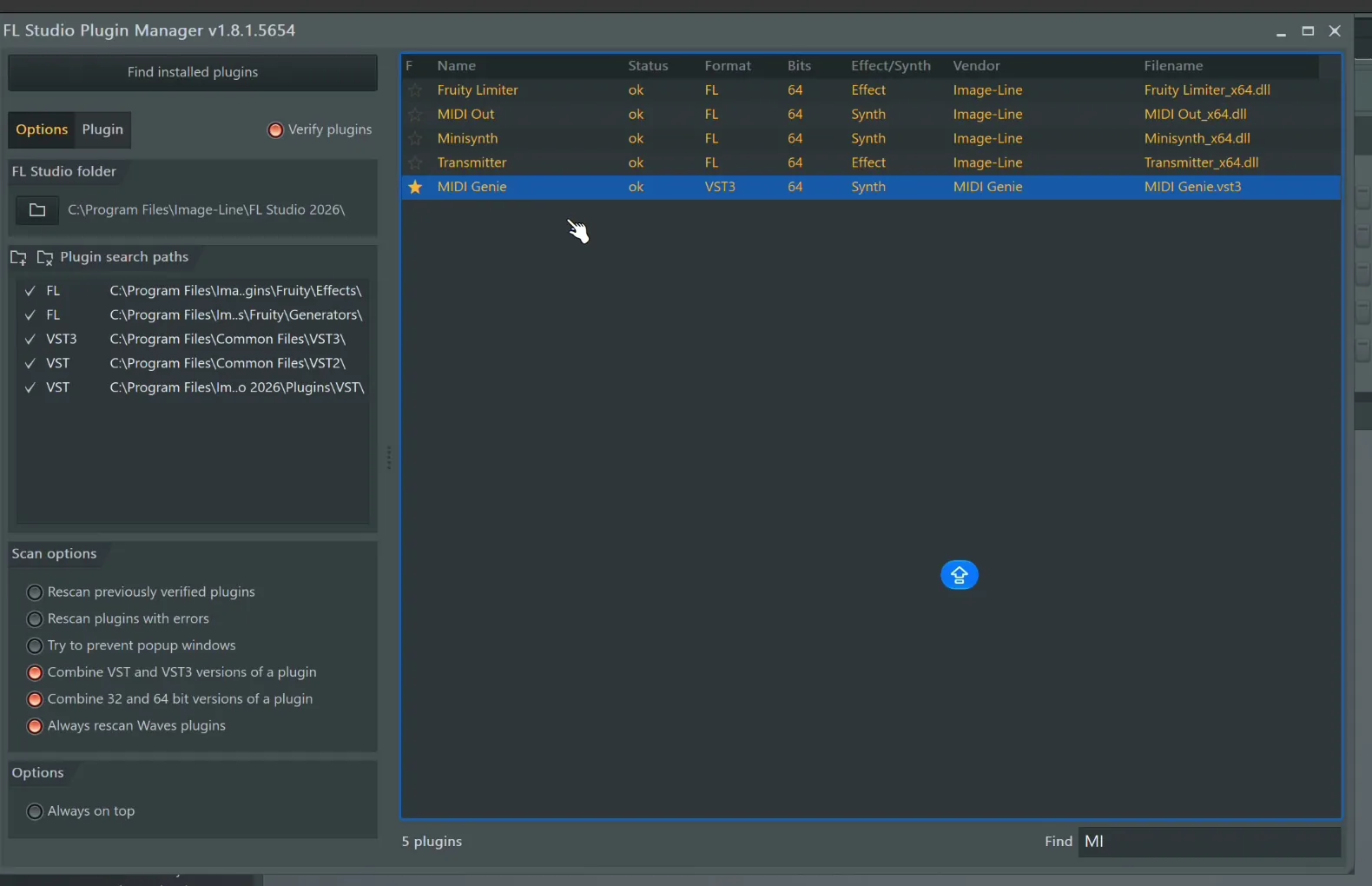
Step 4: Load MIDI Genie as an instrument
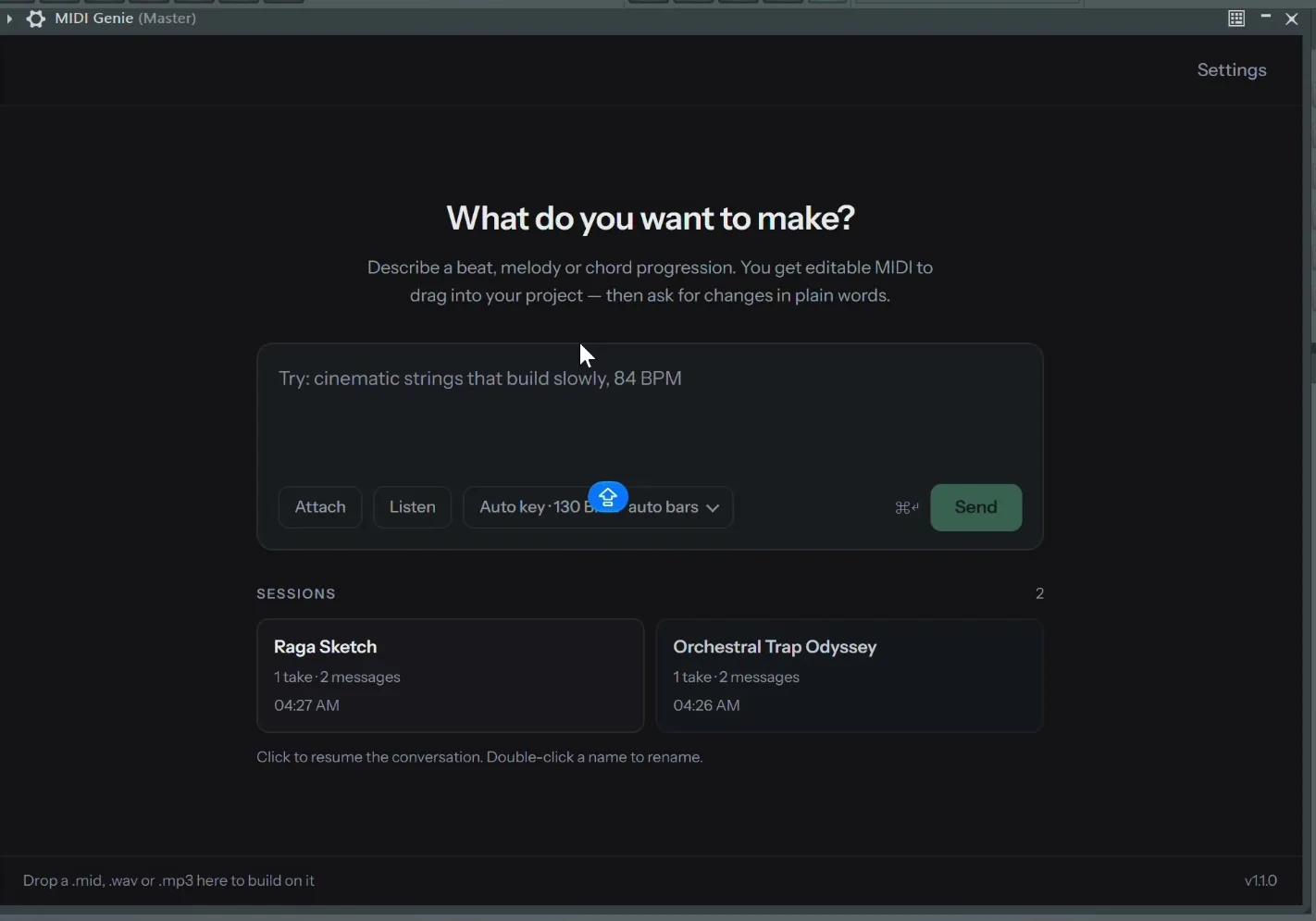
MIDI Genie is an instrument, so load it where your synths go, not on an effect slot. In FL Studio, press + in the Channel Rack and pick MIDI Genie. In Ableton Live, drag it from Plug-ins onto a MIDI track.
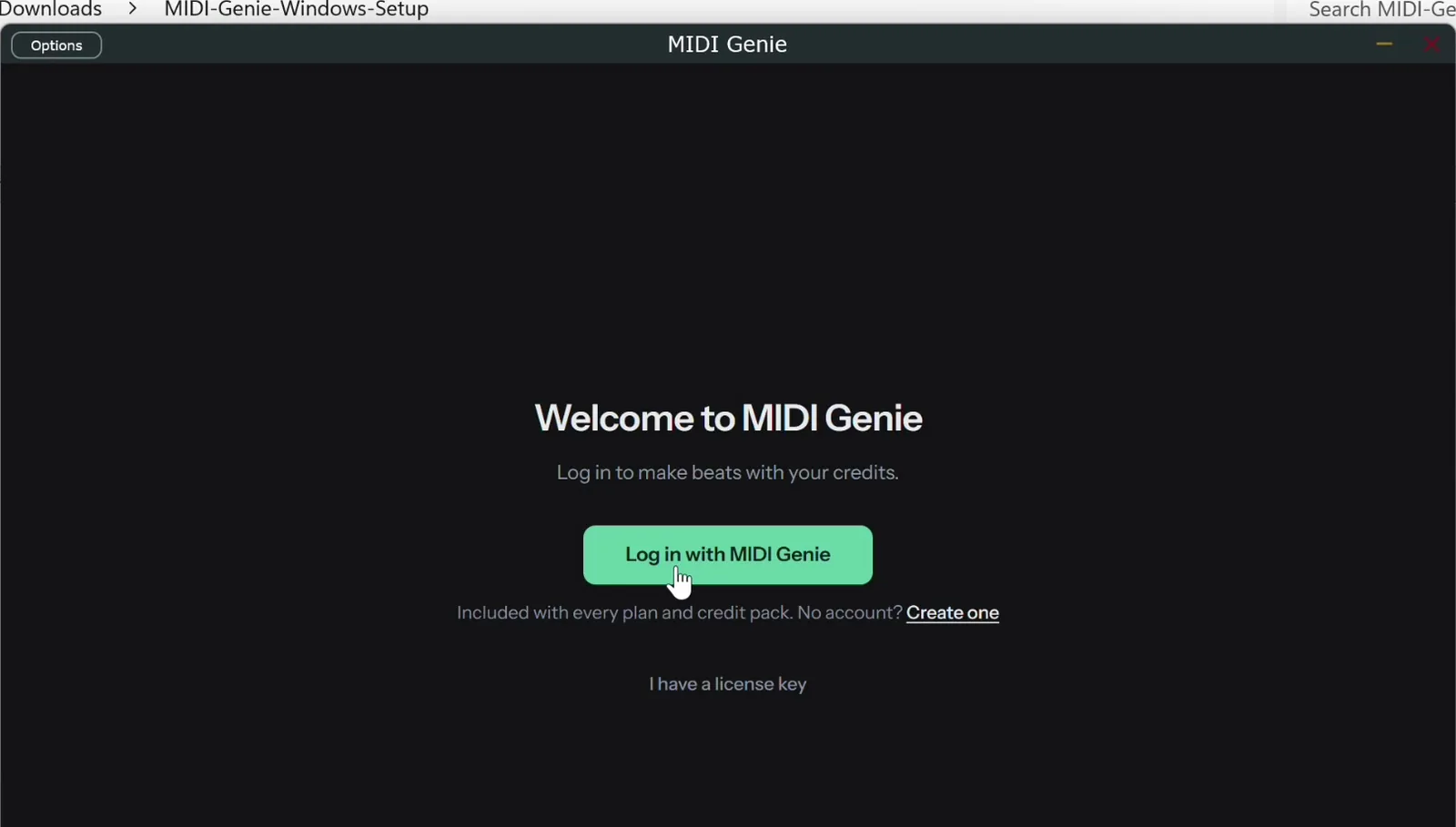
Step 5: Log in, or enter your licence key
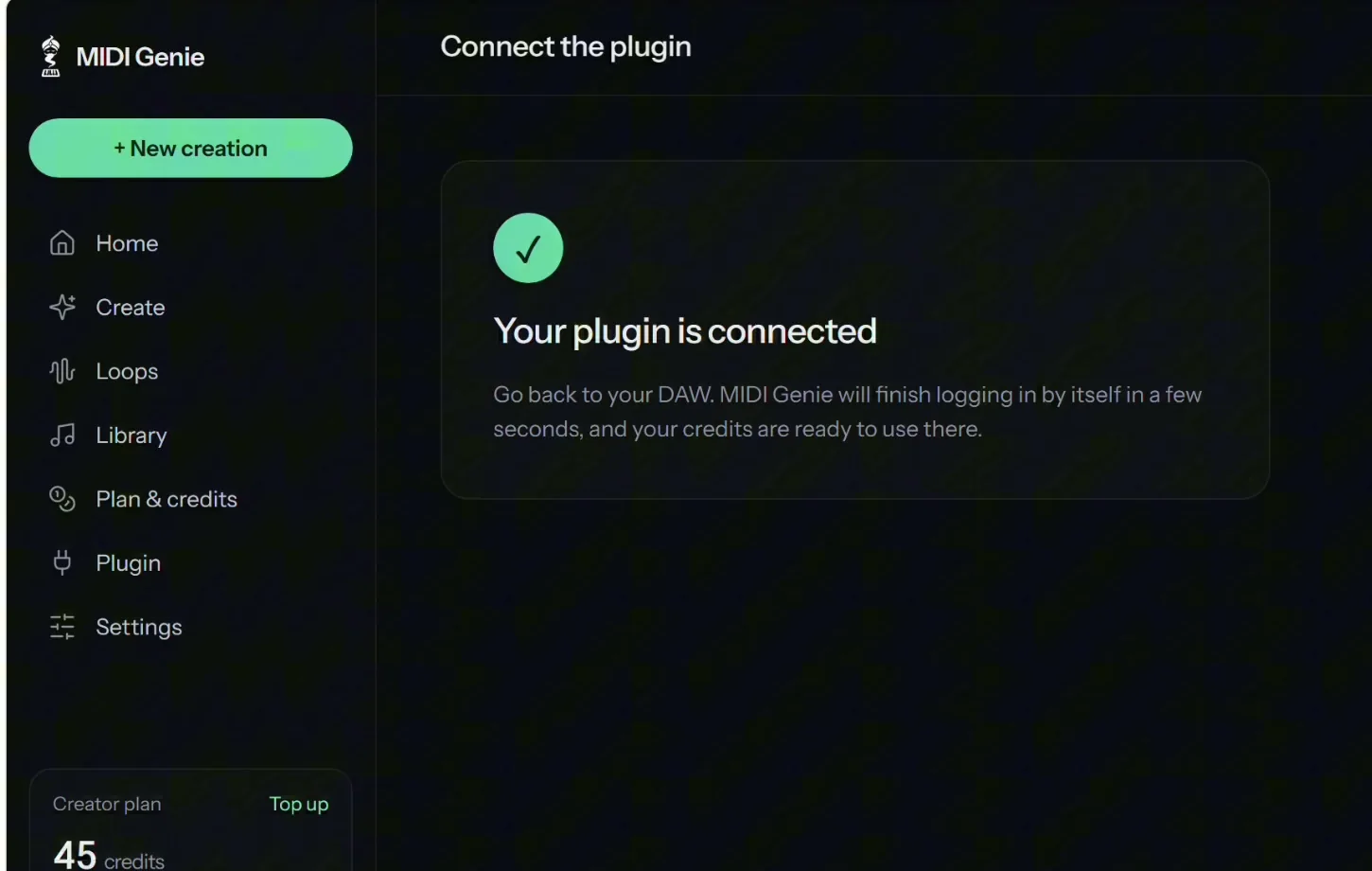
Press Log in with MIDI Genie. The plugin shows a short code and opens your browser. Check the code matches and press Connect the plugin; the plugin logs in by itself a few seconds later, with your credits in its top bar. Bought a licence instead? Press I have a license key and paste it.
Step 6: Describe the beat you want
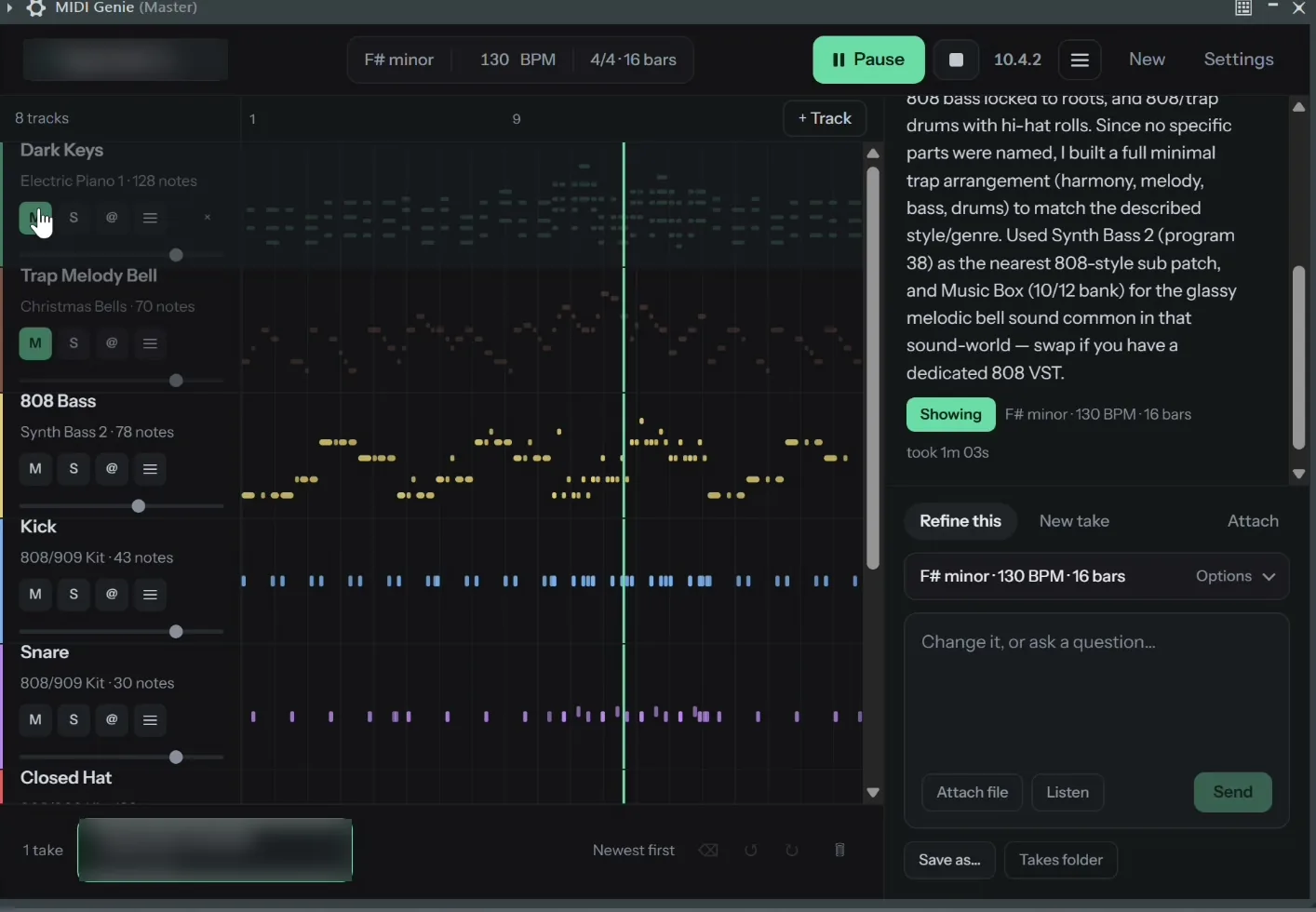
Type what you hear in your head: the style, the mood, the tempo and two or three sounds. Leave the key and bars on Auto, or set them in Options. By default MIDI Genie follows your project's tempo. Press Send, and in a minute or so the beat appears as separate tracks you can play right away.
Ideas to start from:
- warm Afrobeats groove with shakers, a round bass and soft Rhodes, 104 BPM
- gospel chords on organ with a walking bass and live-feel drums
- laid-back lo-fi beat with dusty piano, upright bass and brushed drums
- cinematic build with strings, low brass and big drums
- amapiano groove with log drums, shakers and airy pads, 112 BPM
Step 7: Change it in plain words
Not quite there? Type what to change and send it: "busier hi-hats in the second half", "swap the keys for strings", "make the bass bounce more". To change only one part, tag it with @ on its track. Every result is kept as a take, so you can always go back.
Step 8: Drag the MIDI into your project
Drag a single track by its handle, or the whole take from the takes strip, onto your DAW. In FL Studio, drop the whole take on the Channel Rack: FL asks how to import it, press Accept, and each part lands on its own channel. Then load each one onto the instrument you like.
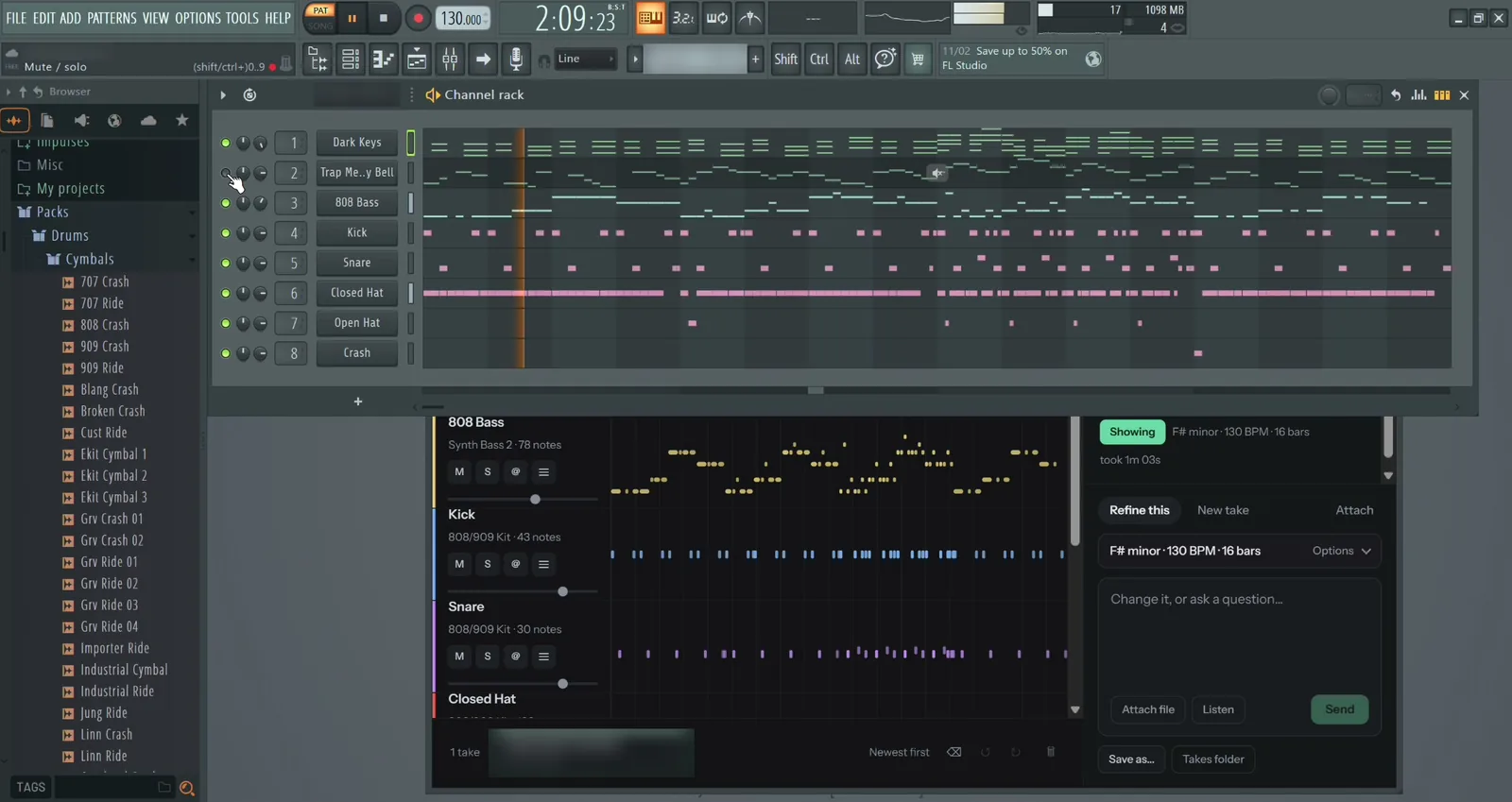
If a drag doesn't work in your DAW, press Save as… and import the .mid file, or drag it from the Takes folder.
Two ways to unlock the plugin
| With a plan or credit pack | One-time licence | |
|---|---|---|
| Price | Plans from $7 a month, packs from $5 | $20 once |
| How you unlock it | Log in with your MIDI Genie account | Paste your licence key |
| What each beat uses | Your MIDI Genie credits, the same as on the web | Your own AI provider key, paid to the provider |
| Your takes | Synced with your Library on the web | Kept on your computer |
See pricing for every plan and pack.
Troubleshooting on Windows
| Problem | What to do |
|---|---|
| "Windows protected your PC" | Press More info, then Run anyway. You only do this once. |
| Your DAW doesn't list MIDI Genie | Rescan plugins (step 3), look under instruments, and use the 64-bit version of your DAW. |
| It asks for the WebView2 Runtime | Press Download the WebView2 Runtime, install it, and reopen MIDI Genie. |
| Your antivirus blocked it | Restore or allow MIDI Genie in your antivirus, then run the installer again. |
| Space starts your DAW playing | Click inside MIDI Genie's message box first, then type. |
More fixes are in Troubleshooting.
Frequently asked questions
Is there an AI MIDI generator plugin for Windows?
Yes. MIDI Genie runs on Windows 10 and 11 (64-bit) as a VST3 instrument and a standalone app. You describe a beat in plain words and get multi-track MIDI you can play, change and drag into your DAW.
Does it work in FL Studio on Windows?
Yes. Load it from the Channel Rack like any synth, make a beat, and drag the MIDI onto the Channel Rack or Playlist. It follows FL Studio's tempo by default.
Which DAWs does the Windows VST3 work in?
Any DAW that loads 64-bit VST3 instruments, including FL Studio, Ableton Live, Cubase, Studio One, Reaper and Bitwig.
Does it work on Windows 10?
Yes, on 64-bit Windows 10 and Windows 11. The installer adds anything else it needs.
Does it work on a Windows laptop with an ARM chip?
Yes, with the regular 64-bit (x64) version of your DAW. A DAW's ARM version can't load it.
Is the plugin free?
New accounts get 20 free credits to try MIDI Genie in the web app. The plugin comes with every plan and any credit pack, or with a one-time licence for $20.
Can I use the MIDI in my releases?
Yes. You own what you make in MIDI Genie and can use it in your releases, commercially or not, with no credit needed. See the Terms for the details.
Can I use one licence on a Mac and a Windows PC?
Yes. A licence key works on two computers, Mac or Windows, in any mix.
Related guides
- Install the plugin: the full install guide for Mac and Windows.
- Using it in FL Studio: moving MIDI both ways and following your tempo.
- Make a MIDI beat for your vocals: a beat written around your melody.
- Make a beat for your vocals with loops: audio loops that fit your vocal.
Keep reading
Published 3 November 2026.